 Daily Tutorial
 Set Wallpaper with Shortcuts Automation
Learn how to automatically set your year progress on lock screen and home screen using iOS Shortcuts automation.
Preparation
Set up automatic wallpaper changes using the Apple Shortcuts app. Follow the steps to create a shortcut and automation.
1. Make Shortcuts
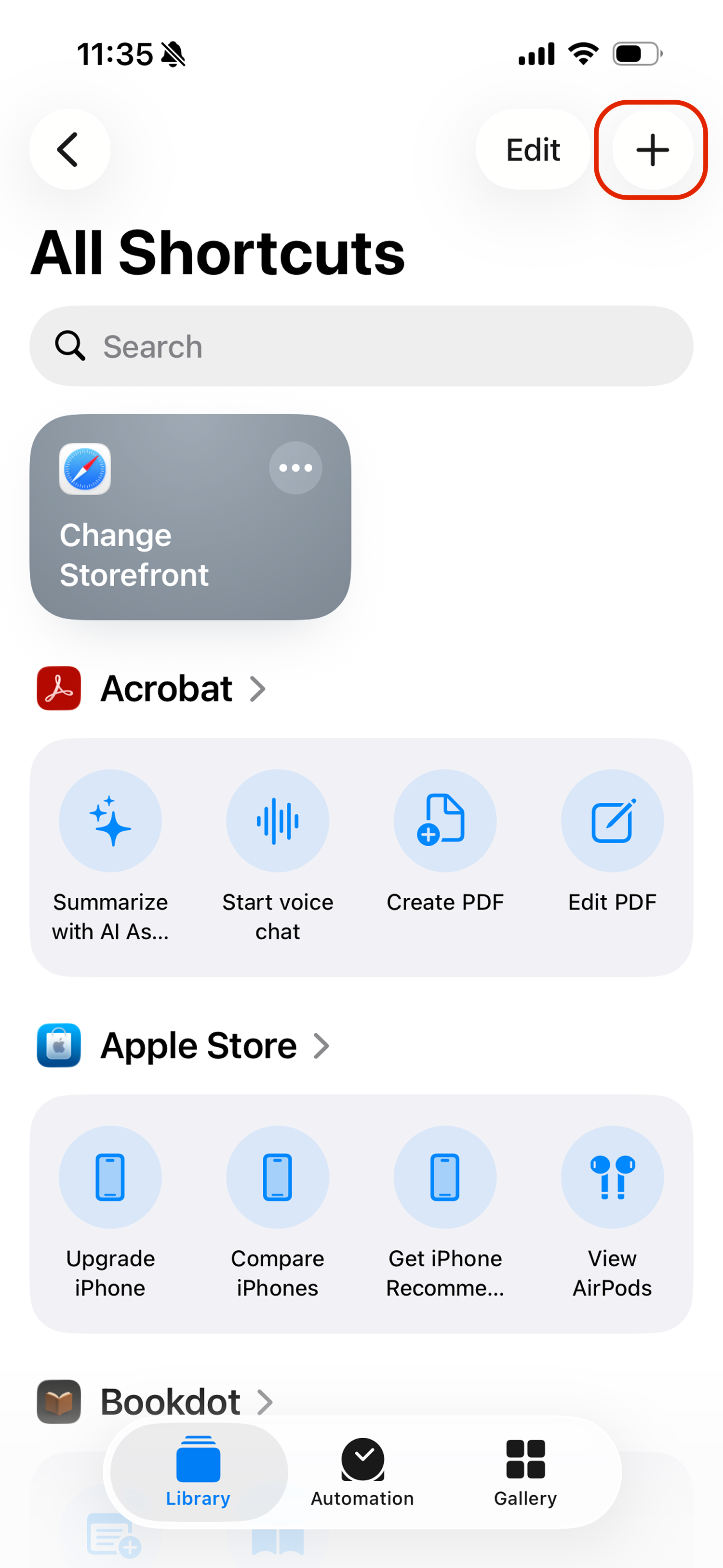
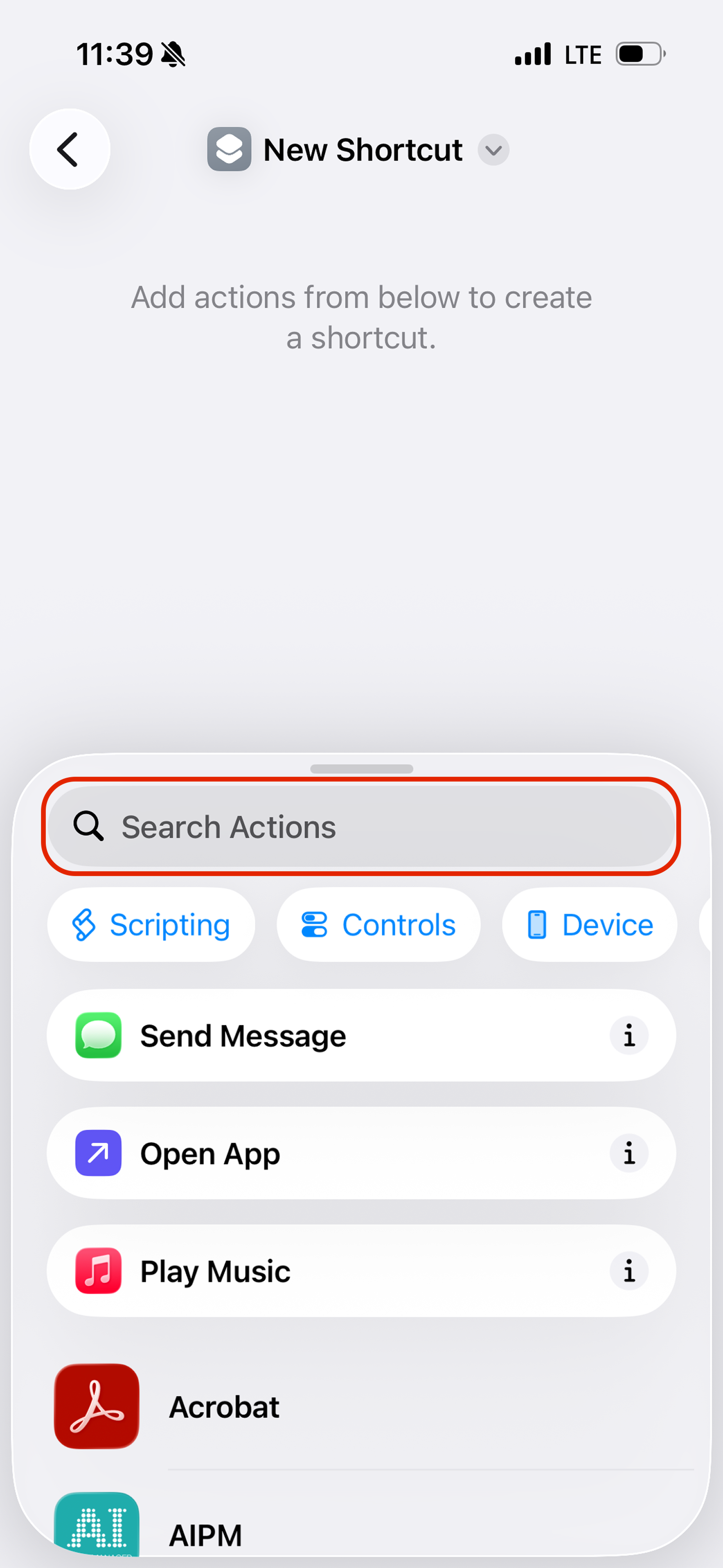
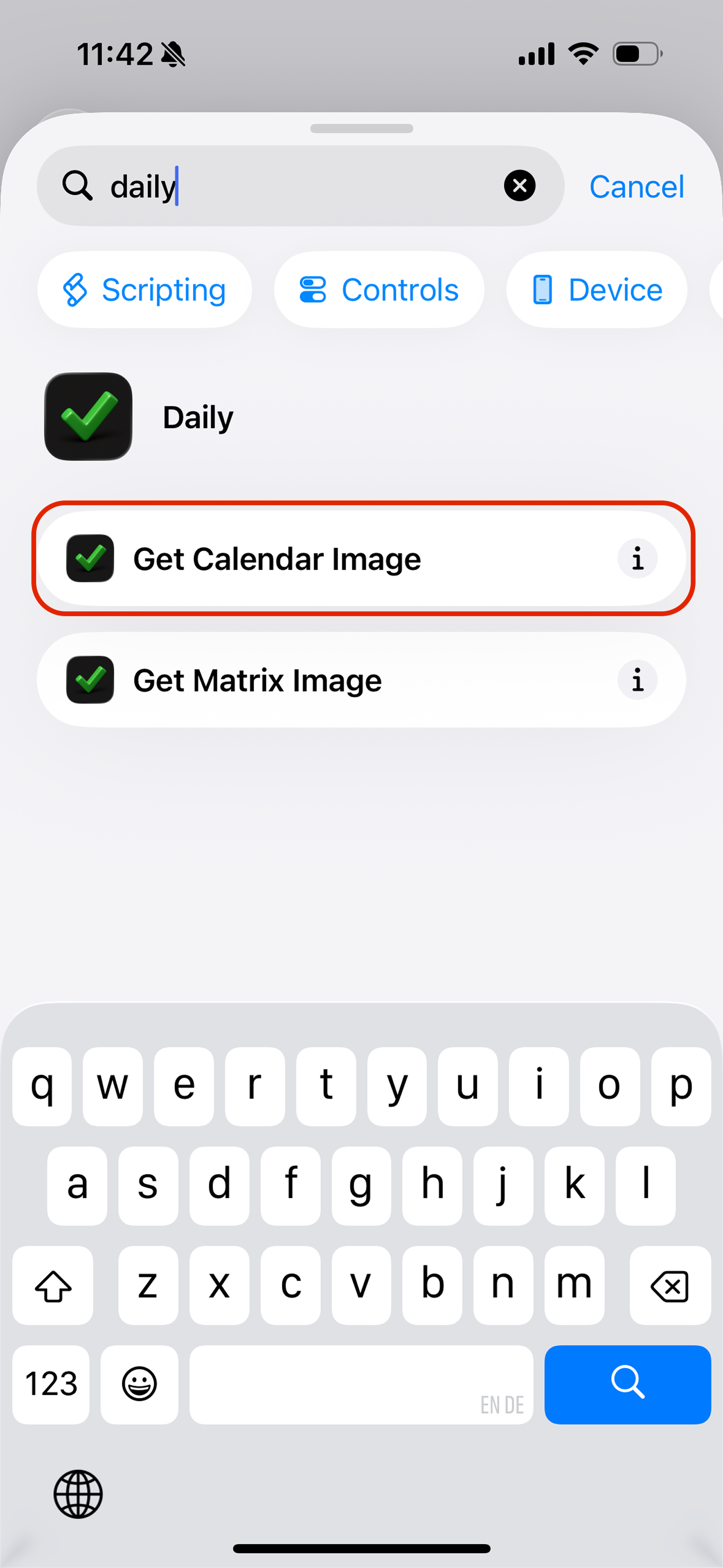
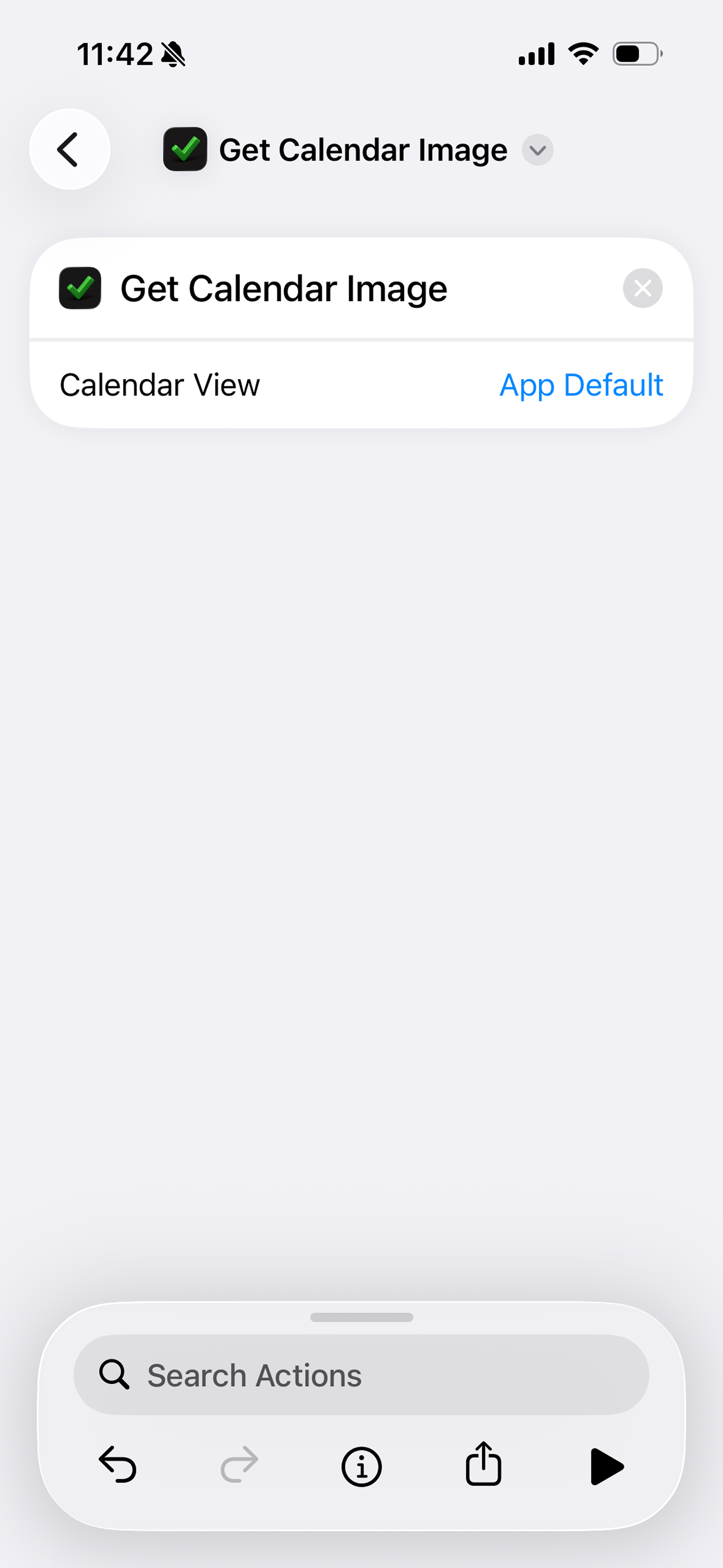
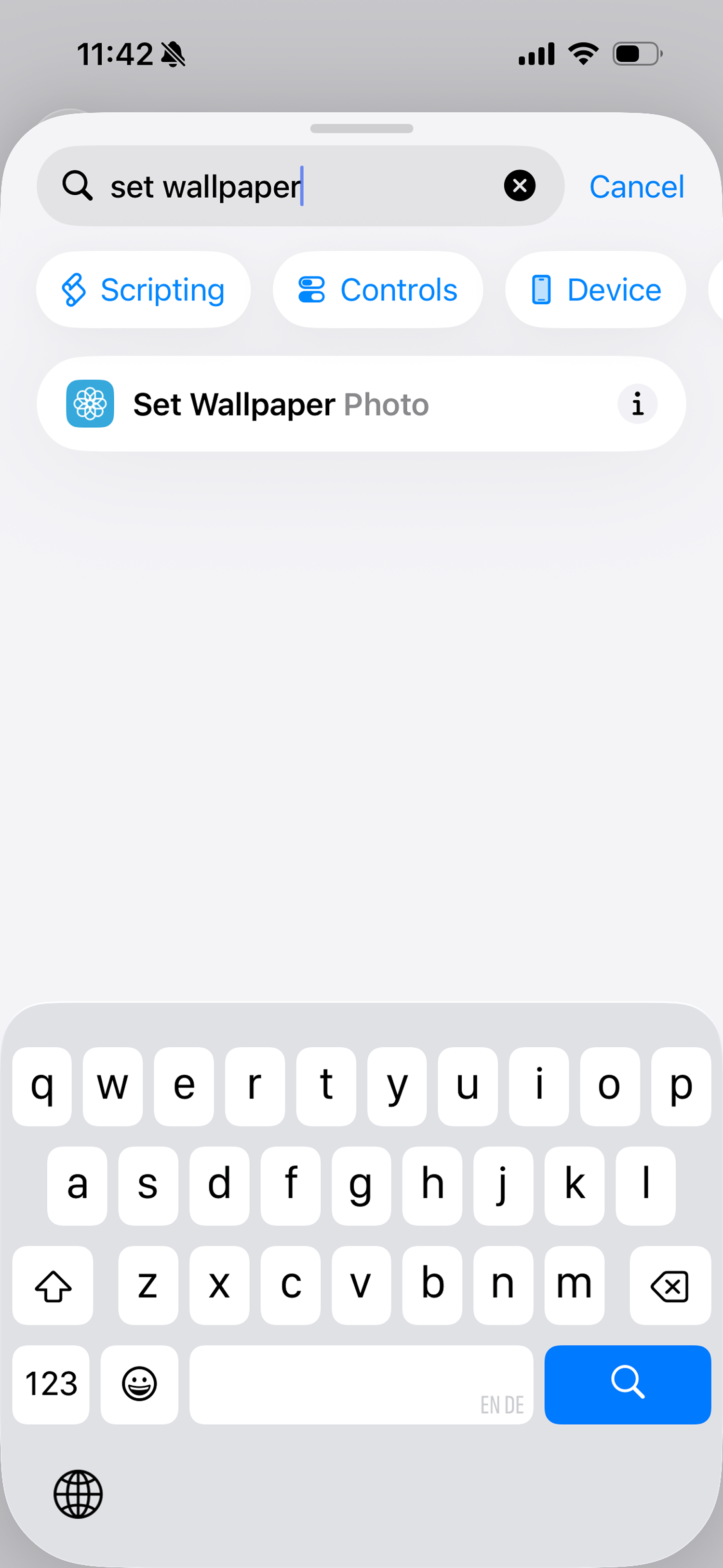
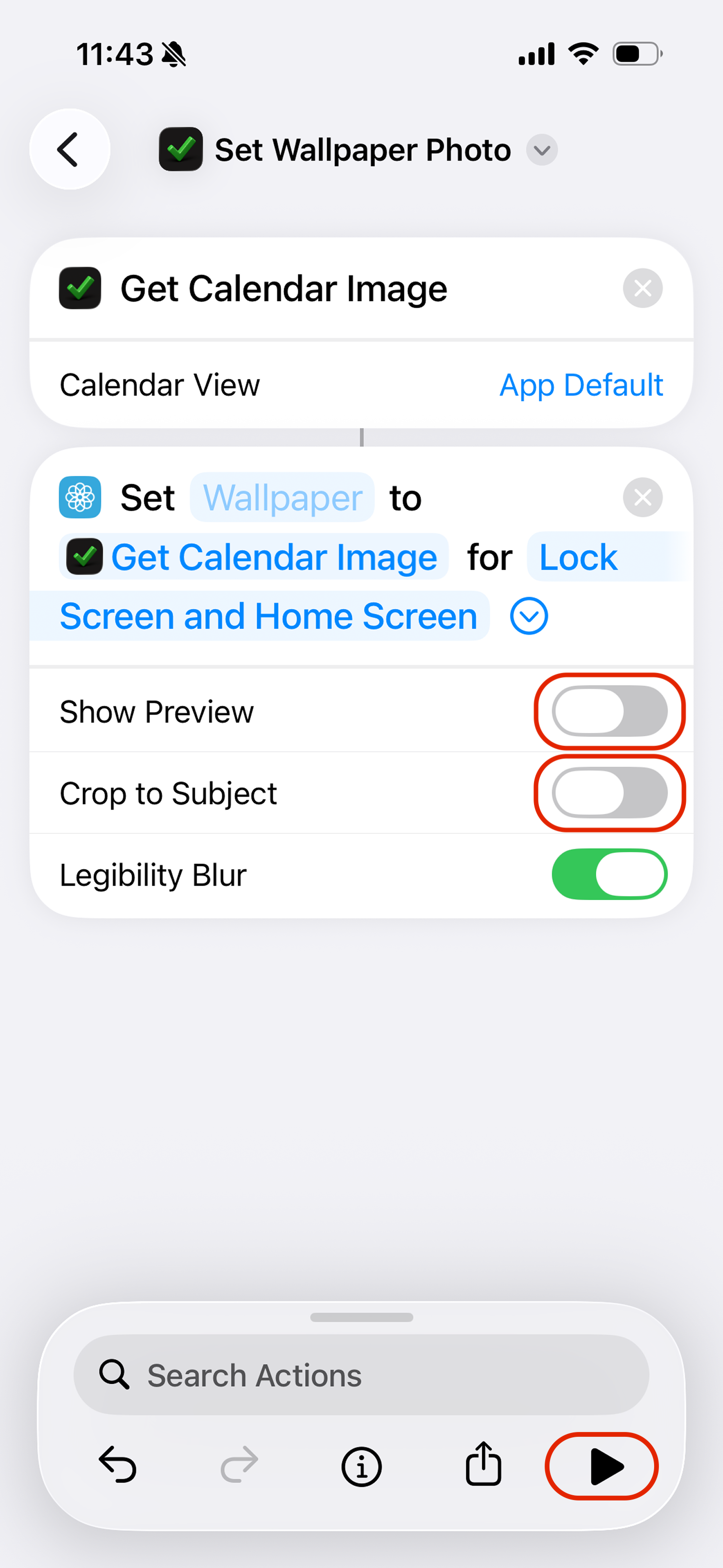
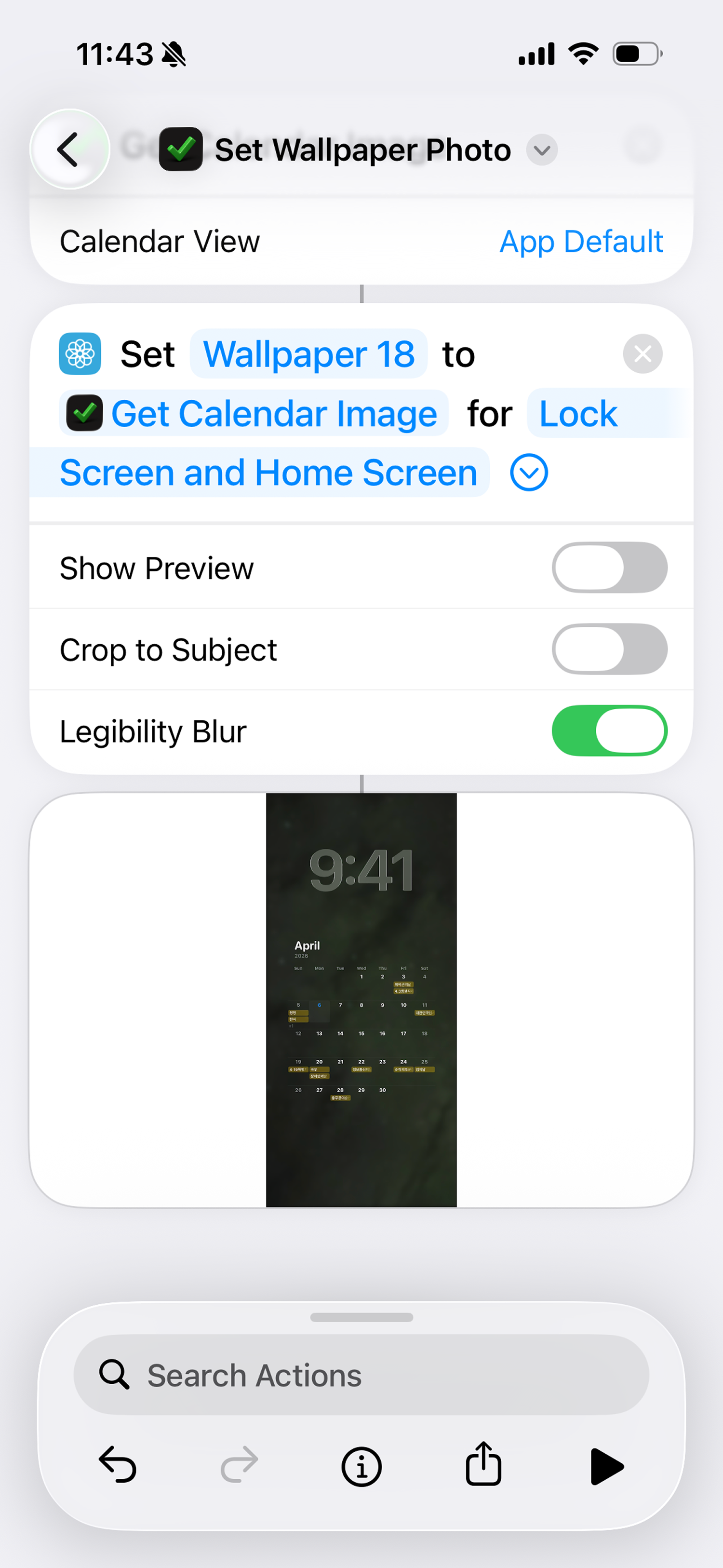
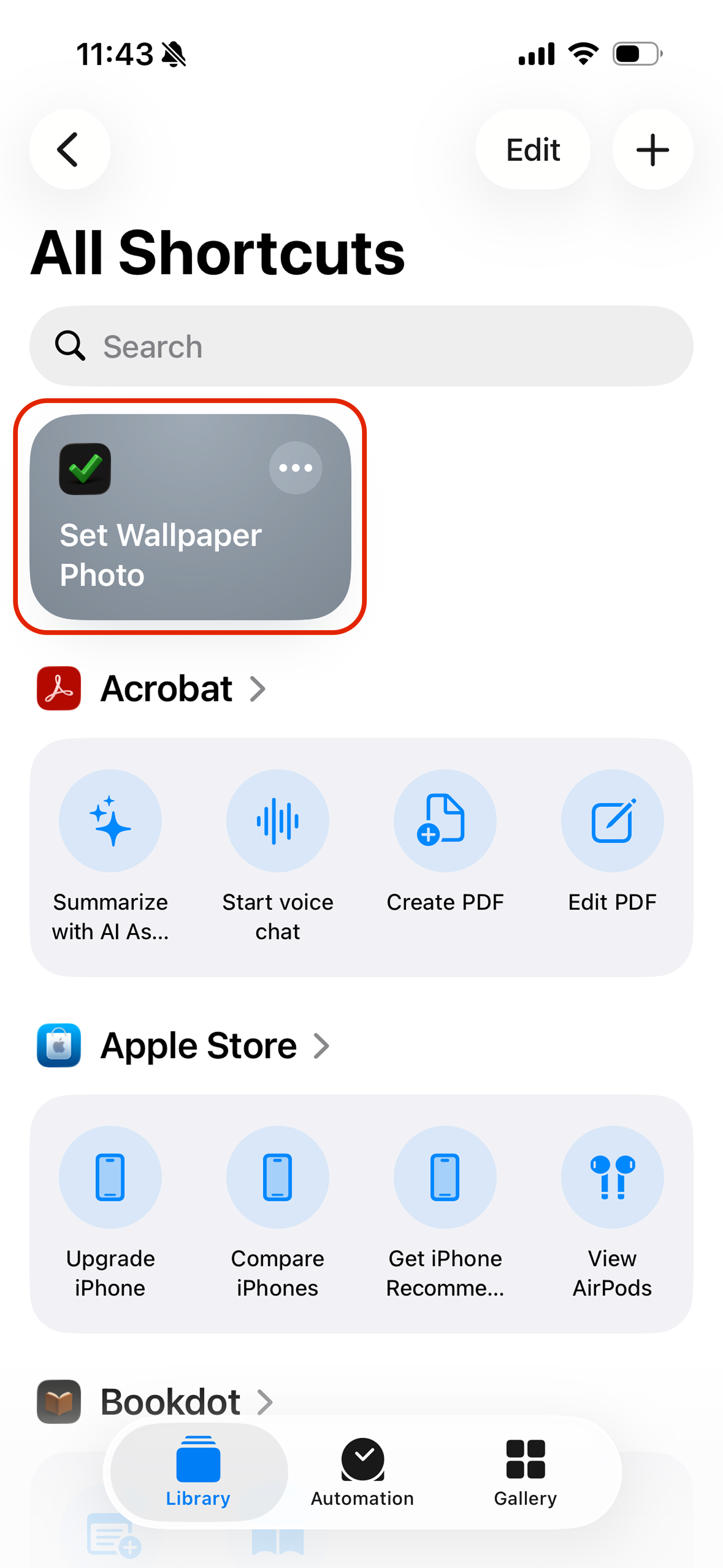
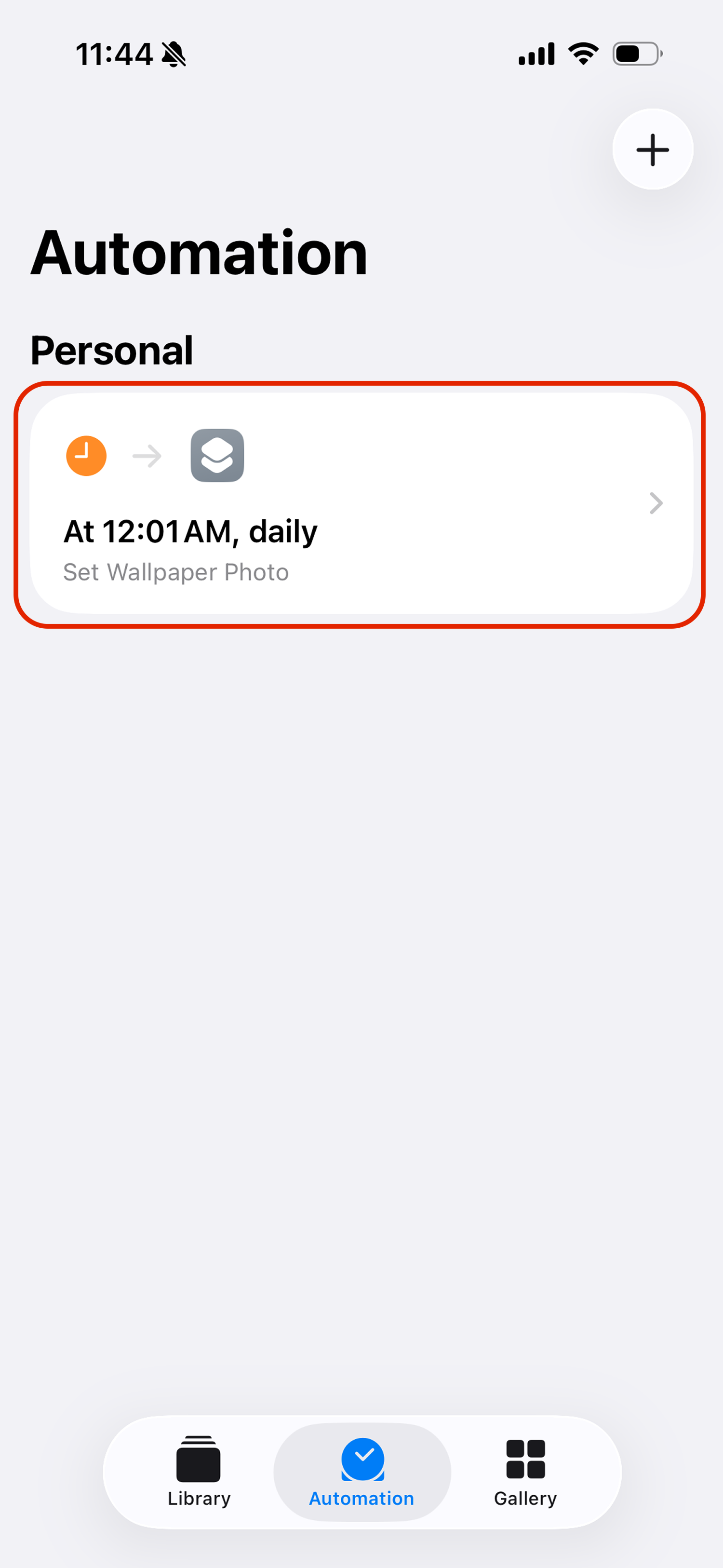
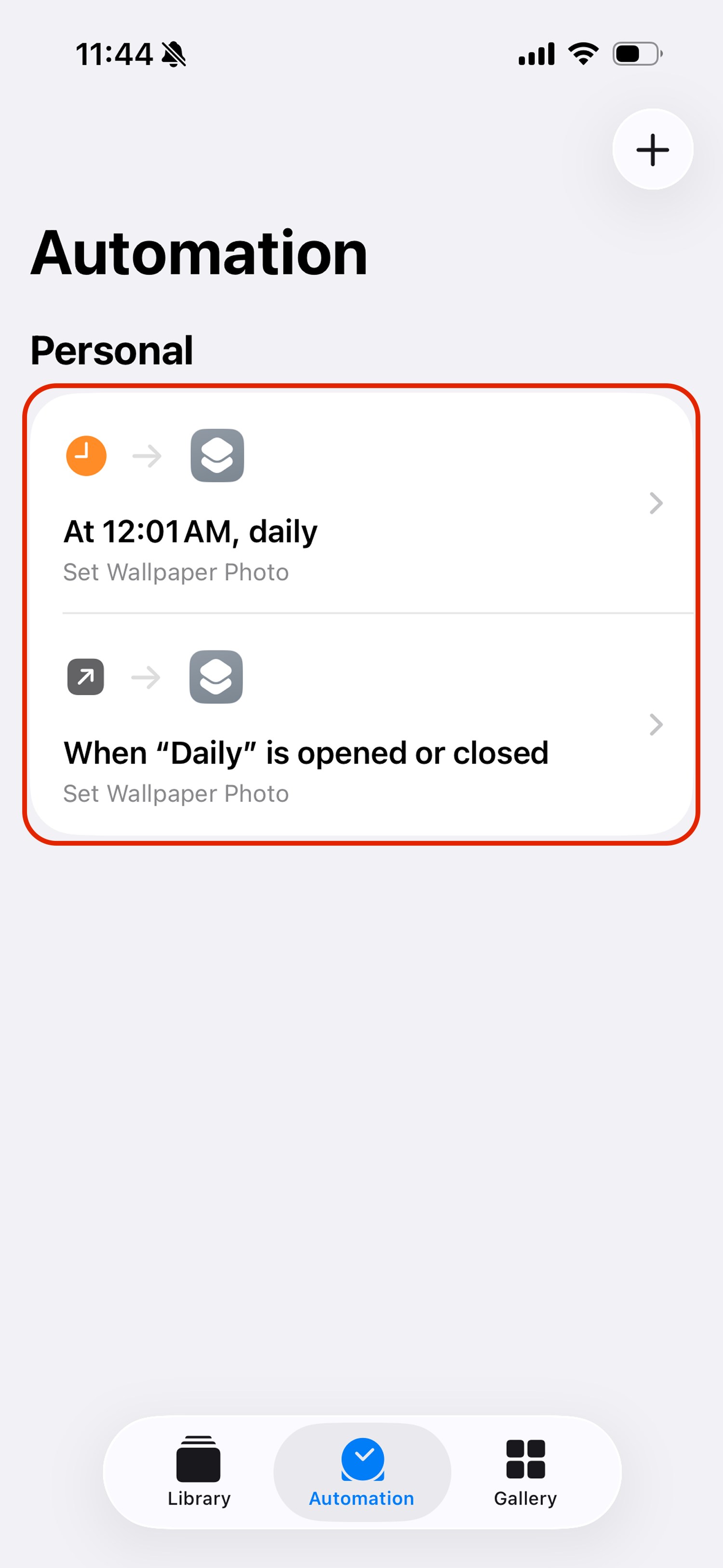
2. Automation Time
Create a time-based automation that runs your shortcut daily to update your wallpaper.
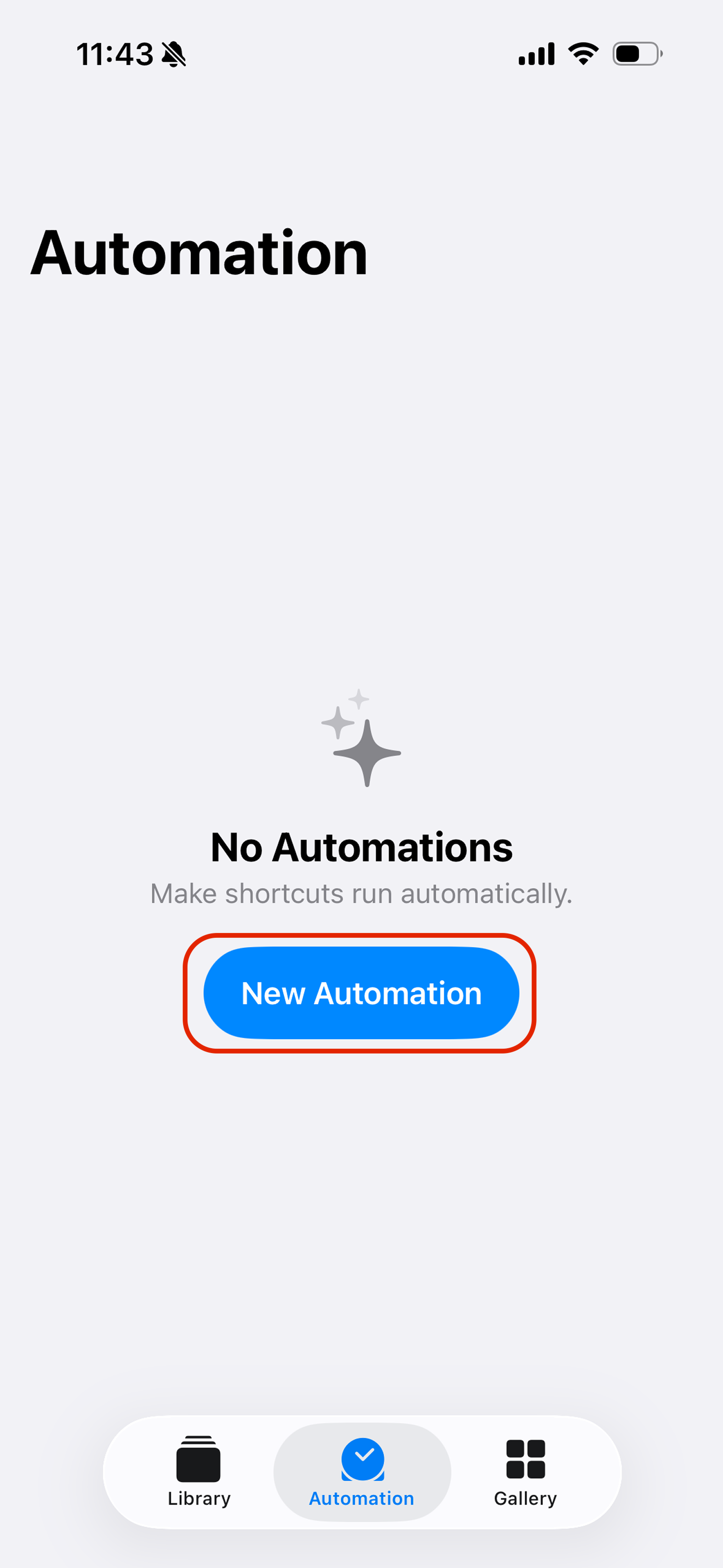
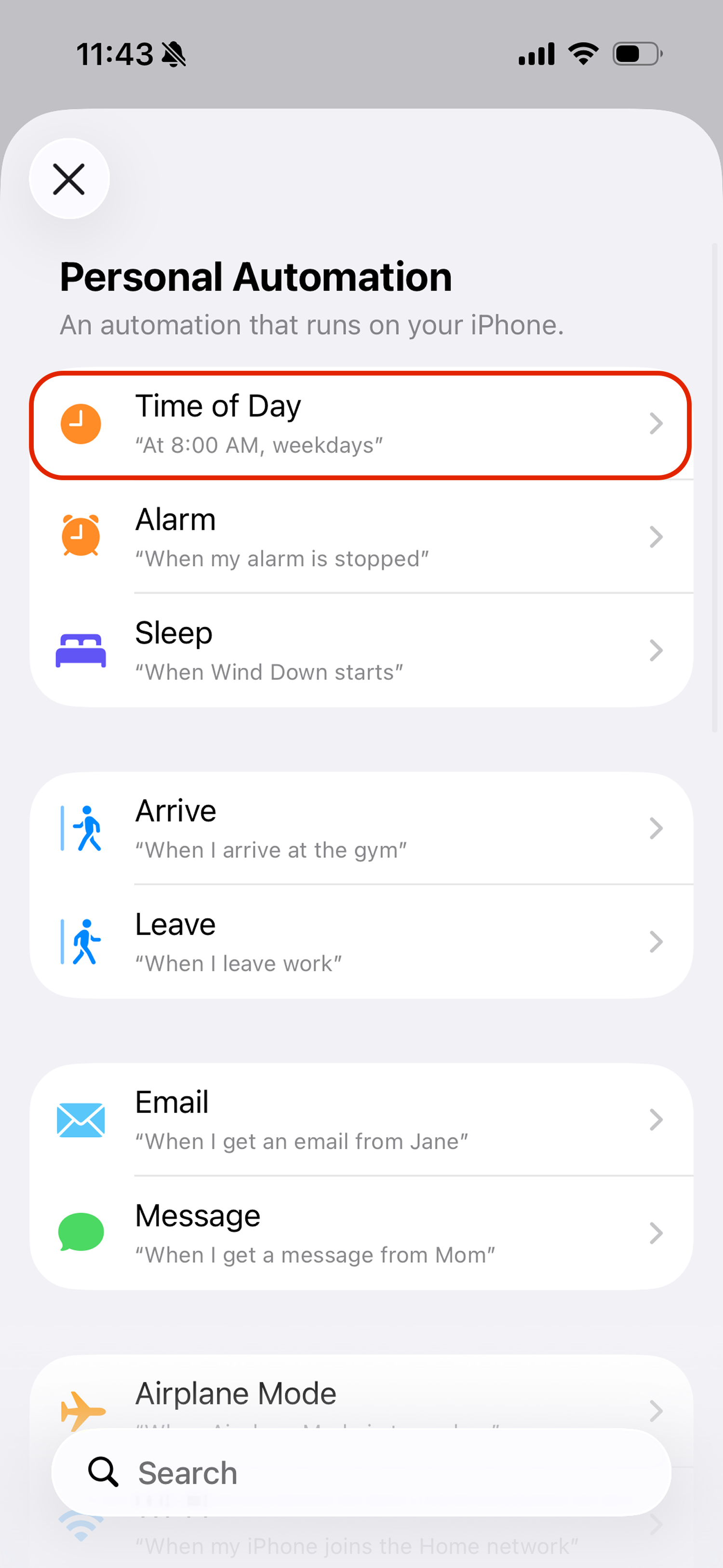
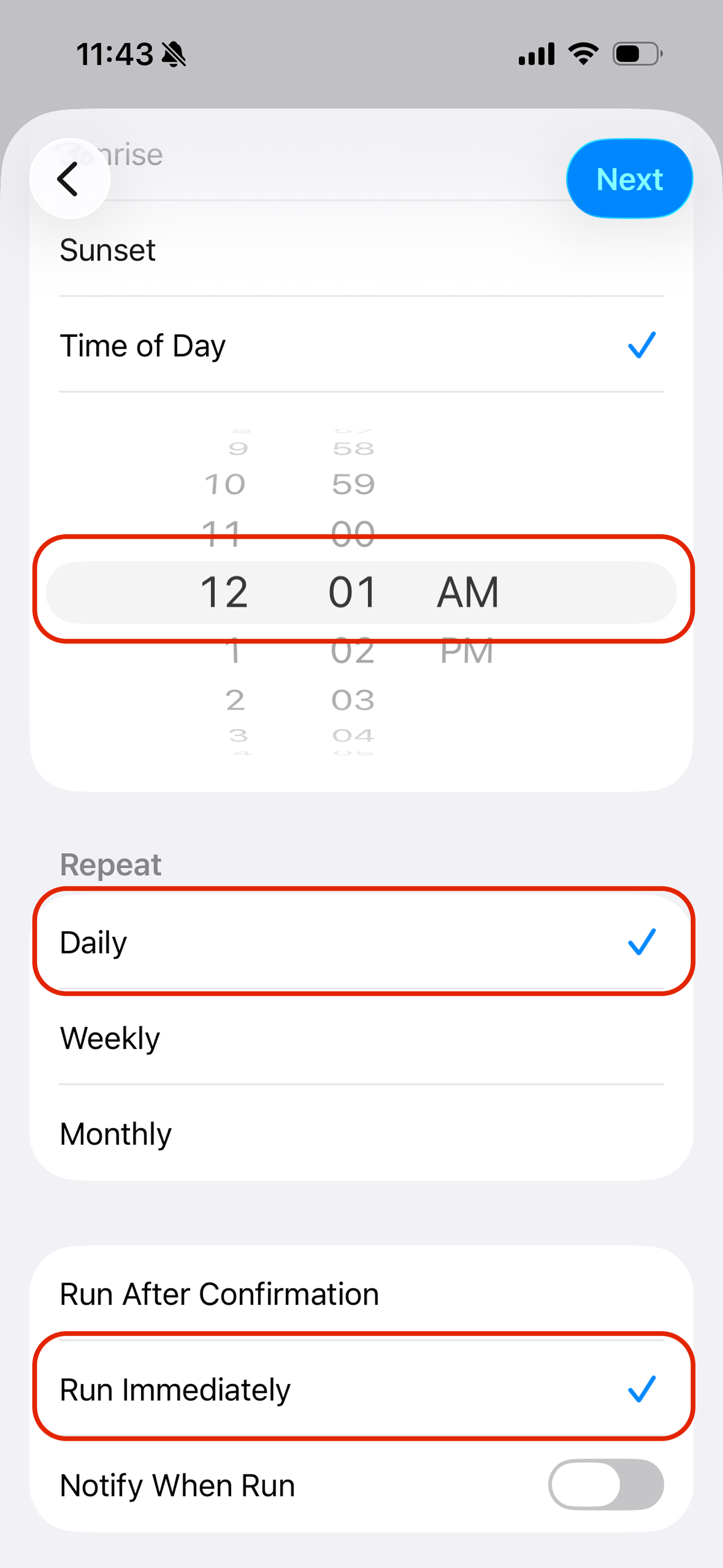
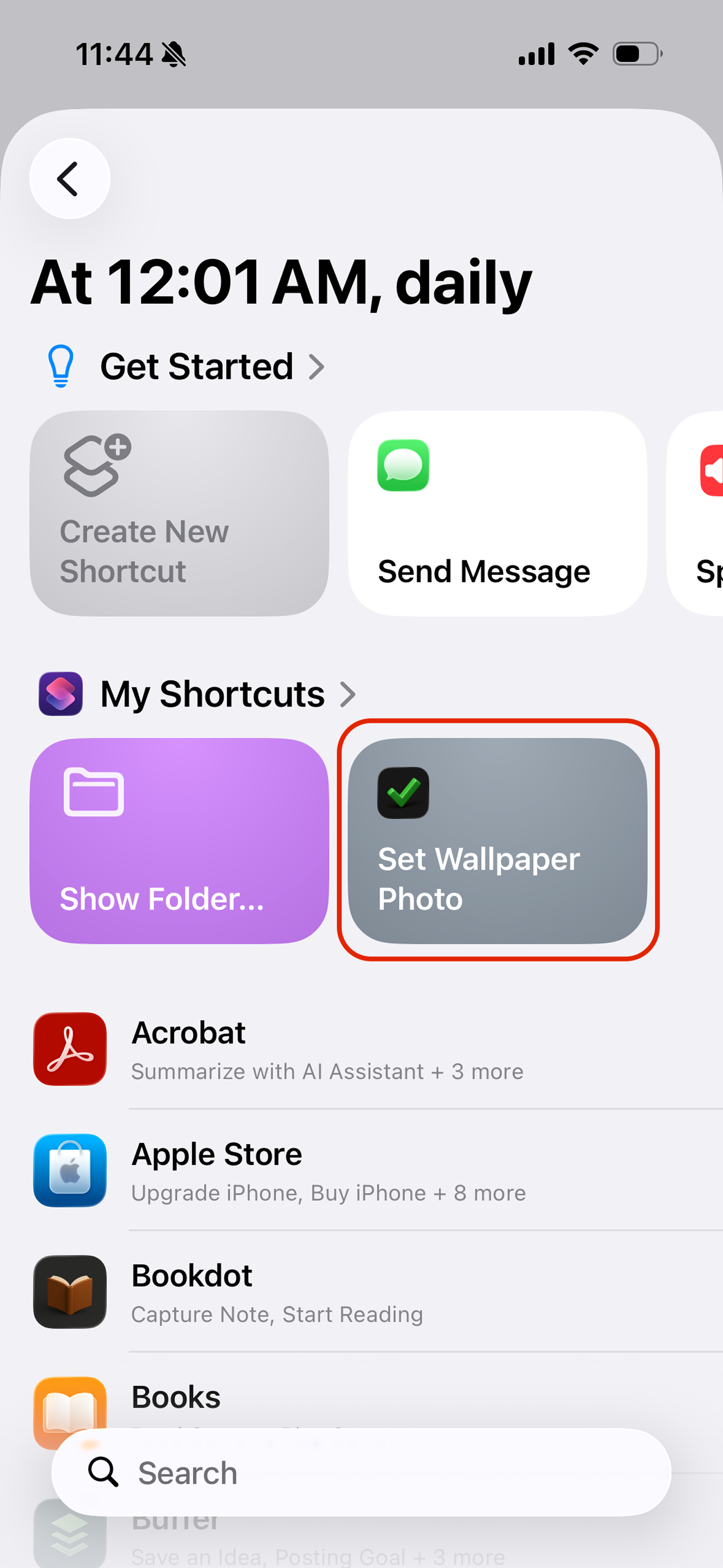
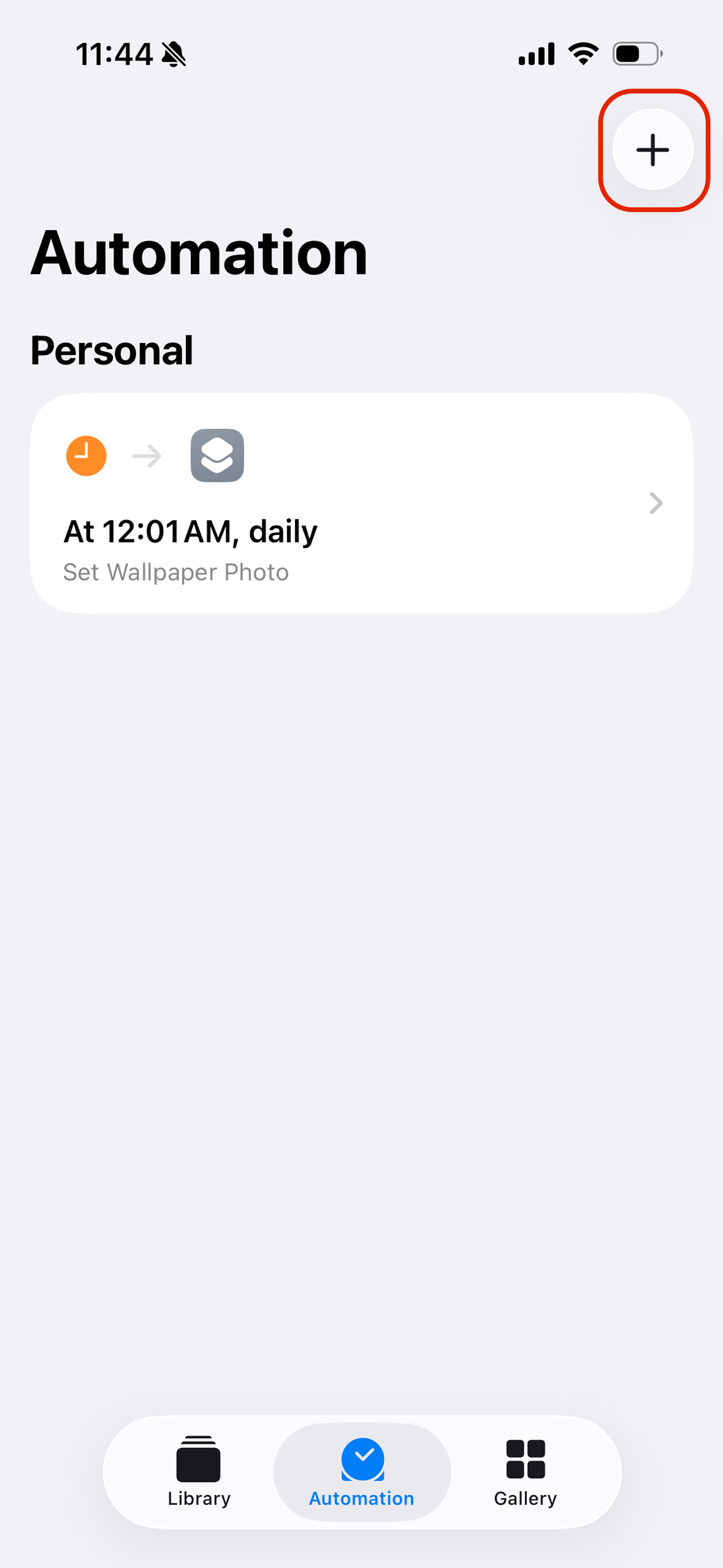
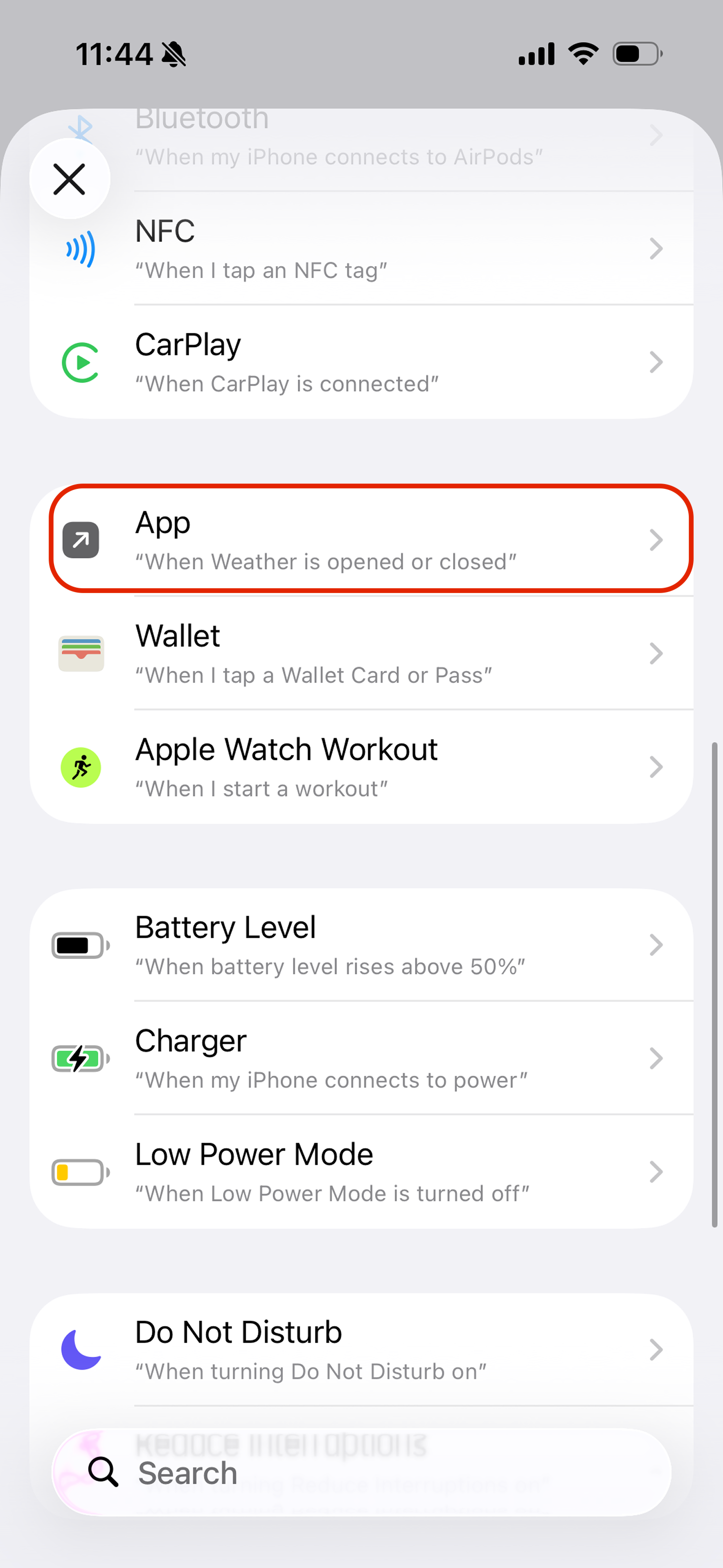
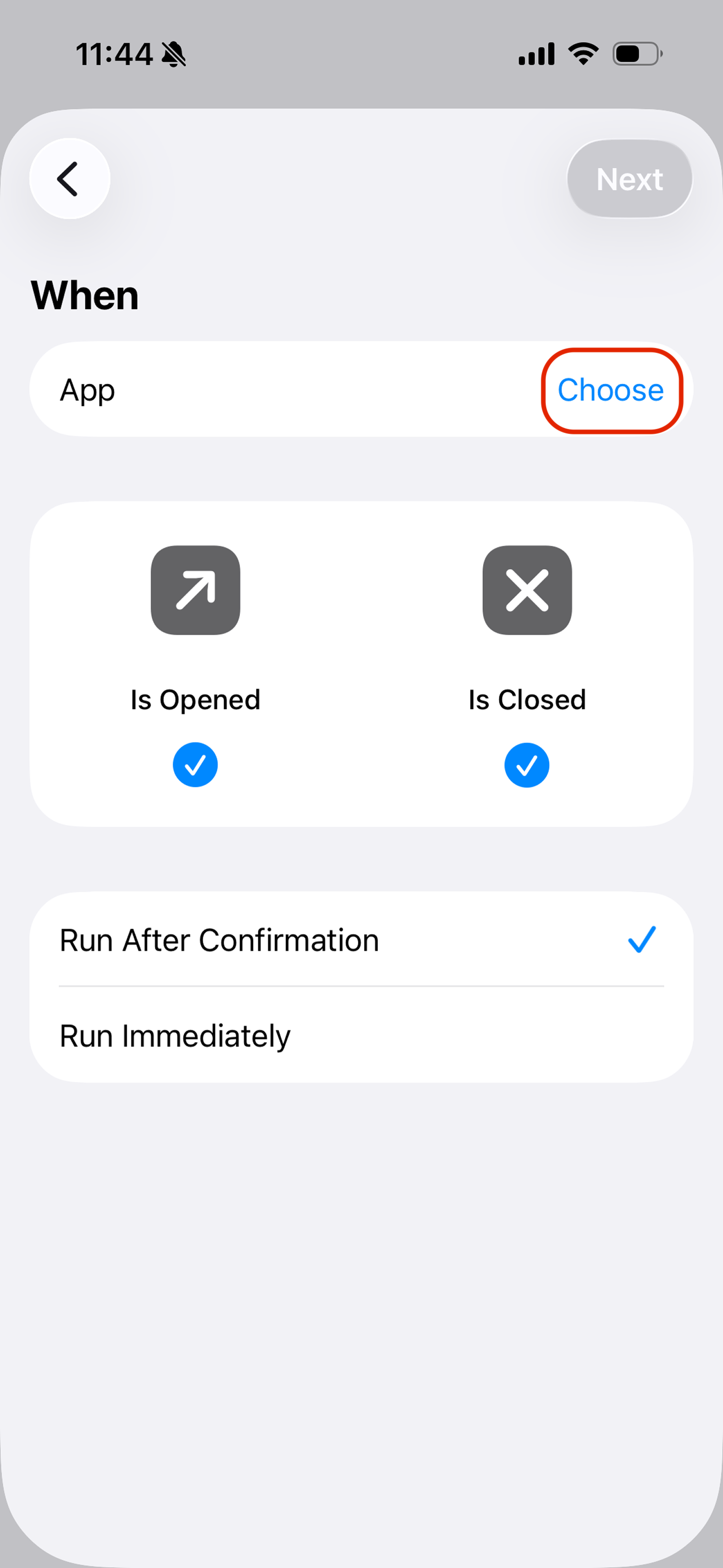
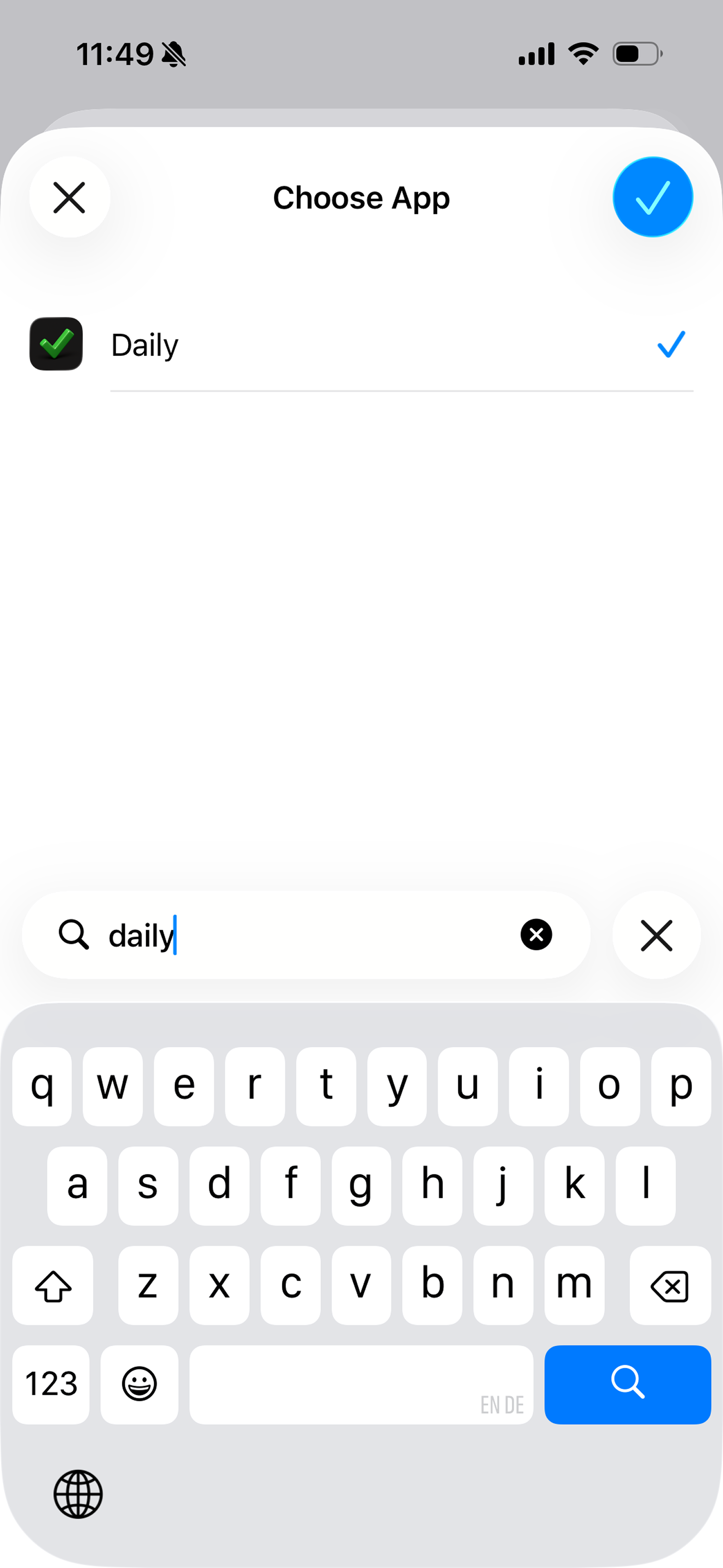
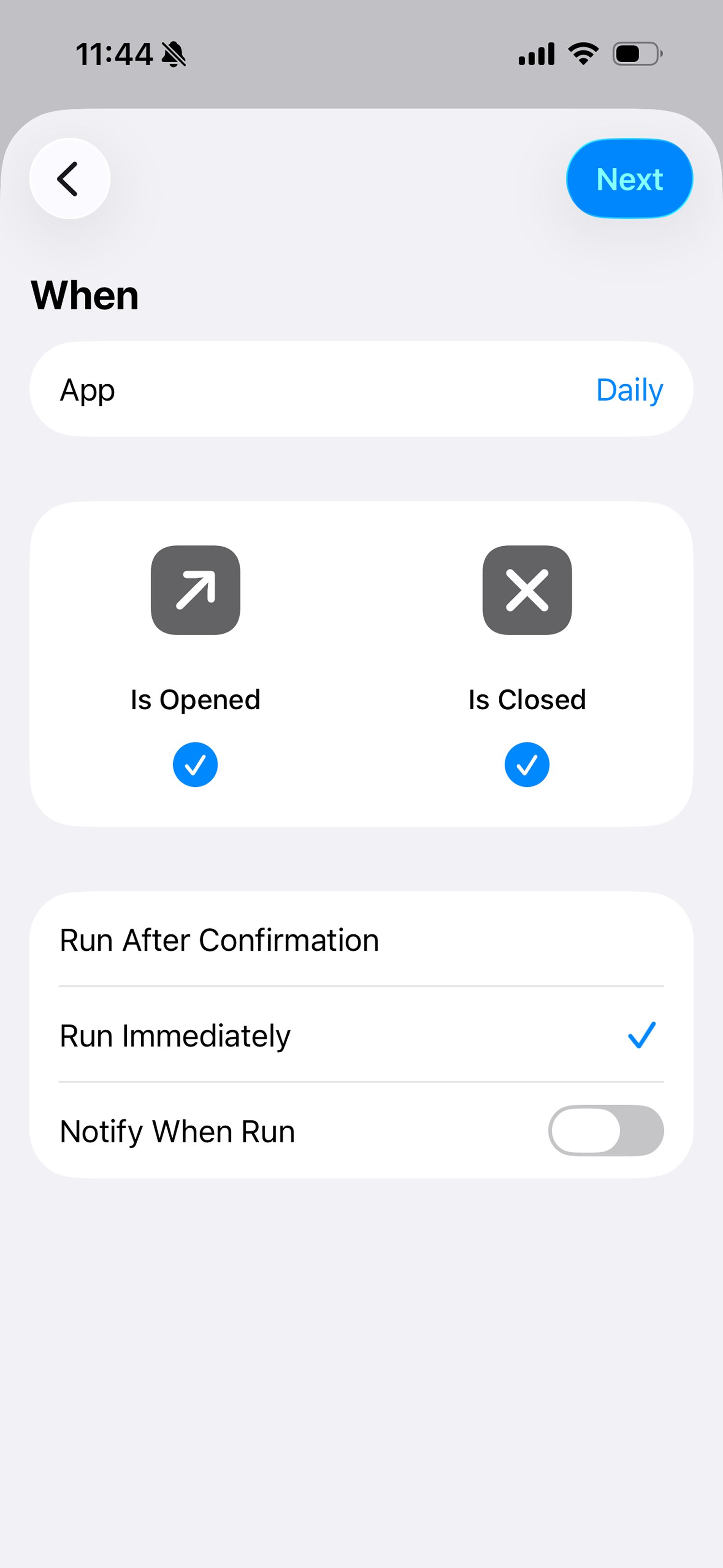
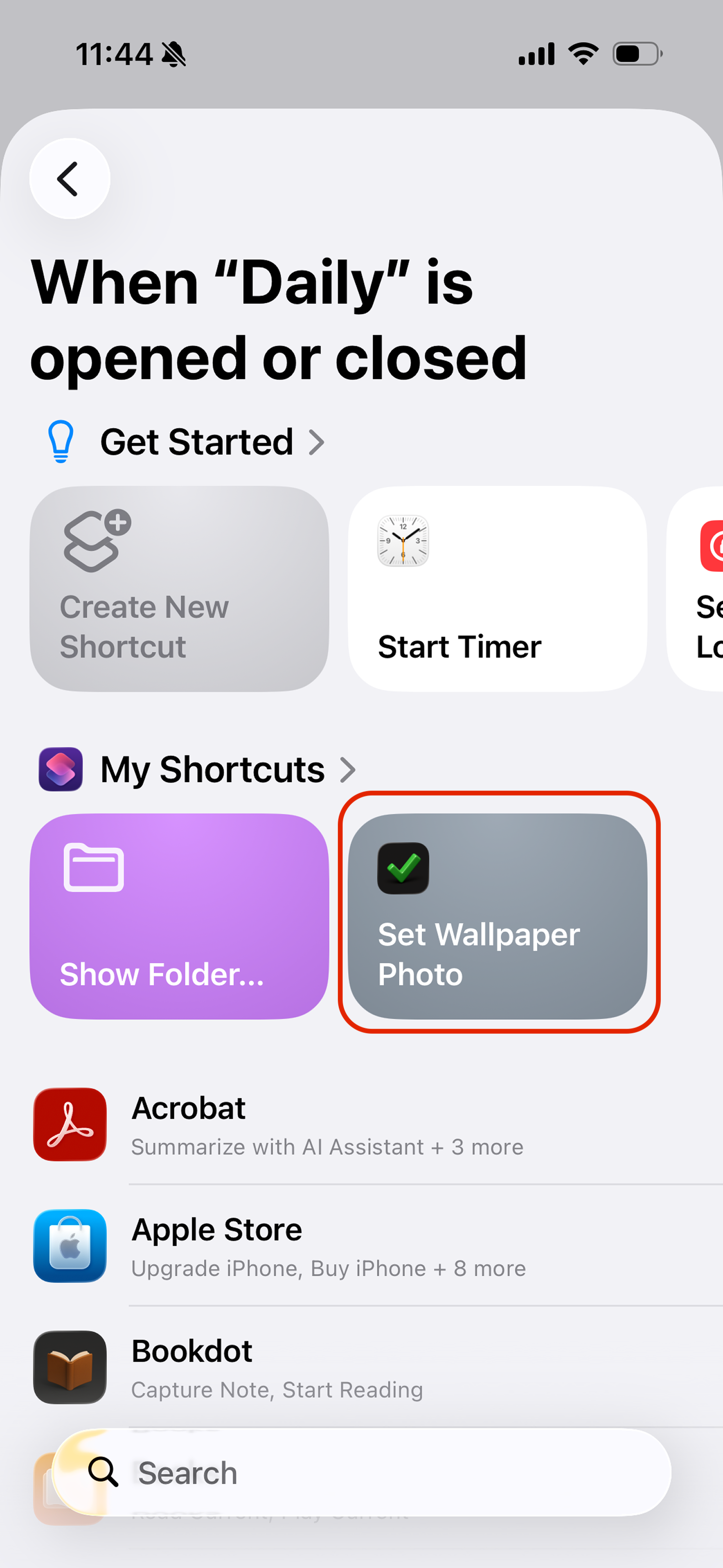
3. App Open & Close
Set up automation that updates your wallpaper when you open or close an app.
Troubleshooting
Wallpaper setting is disabled and automation doesn’t work
If the “Wallpaper” field in Shortcuts automation is disabled (grayed out), the automation will not run properly.
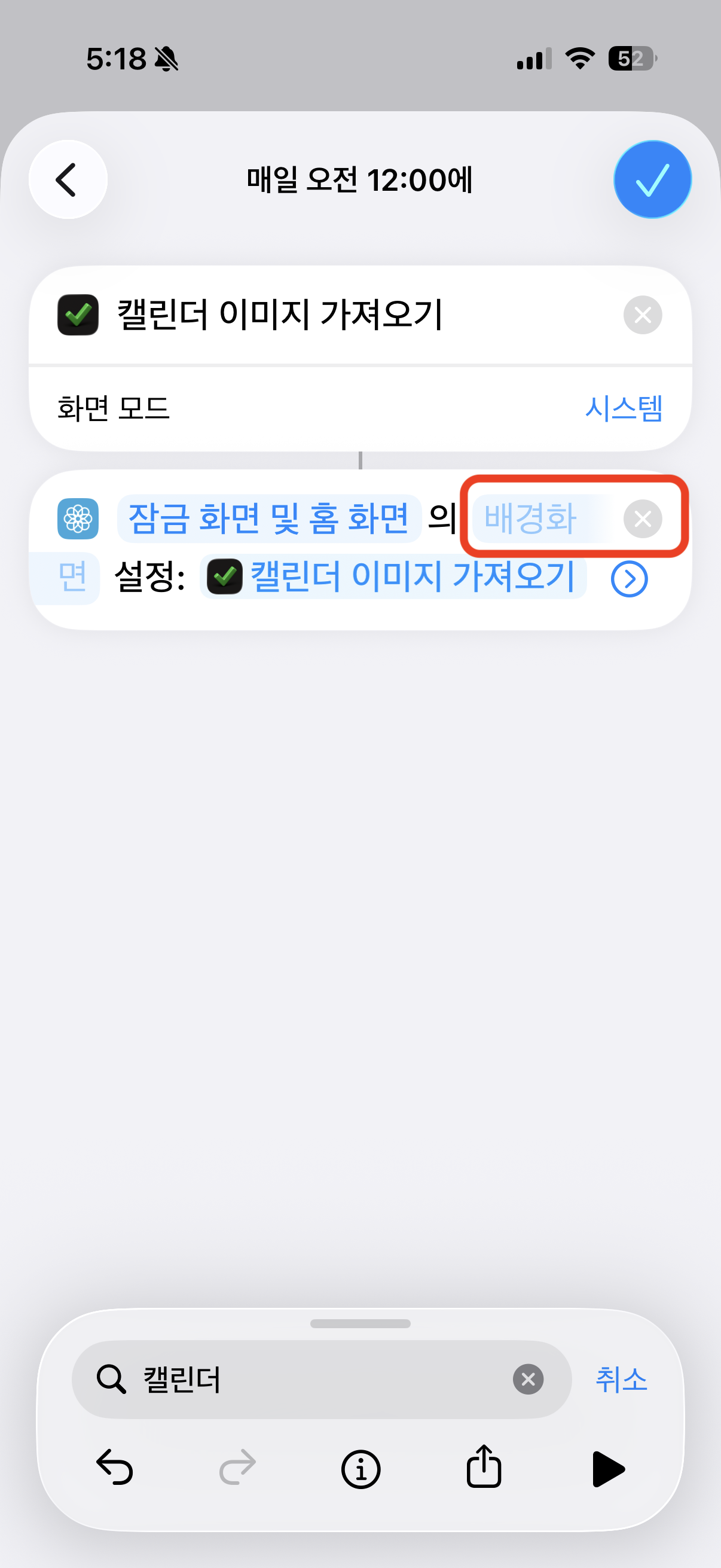
This happens when a photo wallpaper is not set on your current lock screen. Follow the steps below to set a photo wallpaper first.
Fix: Set a Photo Wallpaper
- On your iPhone, go to the Settings app and tap Wallpaper.
- Tap Add New Wallpaper.
- Select Photos and choose an image.
- Adjust the image as needed, then tap Add.
- Tap Set as Wallpaper Pair to apply to both lock screen and home screen.
After setting a photo wallpaper, return to Shortcuts automation and the “Wallpaper” field will be enabled.
For more details, see Apple Support - Change iPhone wallpaper.
Daily app doesn’t appear when searching in the Shortcuts app
If the Daily app doesn’t show up when searching for actions in the Shortcuts app, try the following:
- Open the Daily app and use it briefly, then close it.
- Repeat opening and closing the Daily app several times.
- Force quit the Shortcuts app (swipe up from the app switcher).
- Reopen the Shortcuts app and search for “Daily” again.
You may need to repeat this process a few times. This helps iOS refresh the list of available shortcut actions from installed apps.