 Daily Tutorial
 How to Sync Naver Calendar
Learn how to sync your Naver Calendar with iPhone using CalDAV in the Settings app.
3 minutes
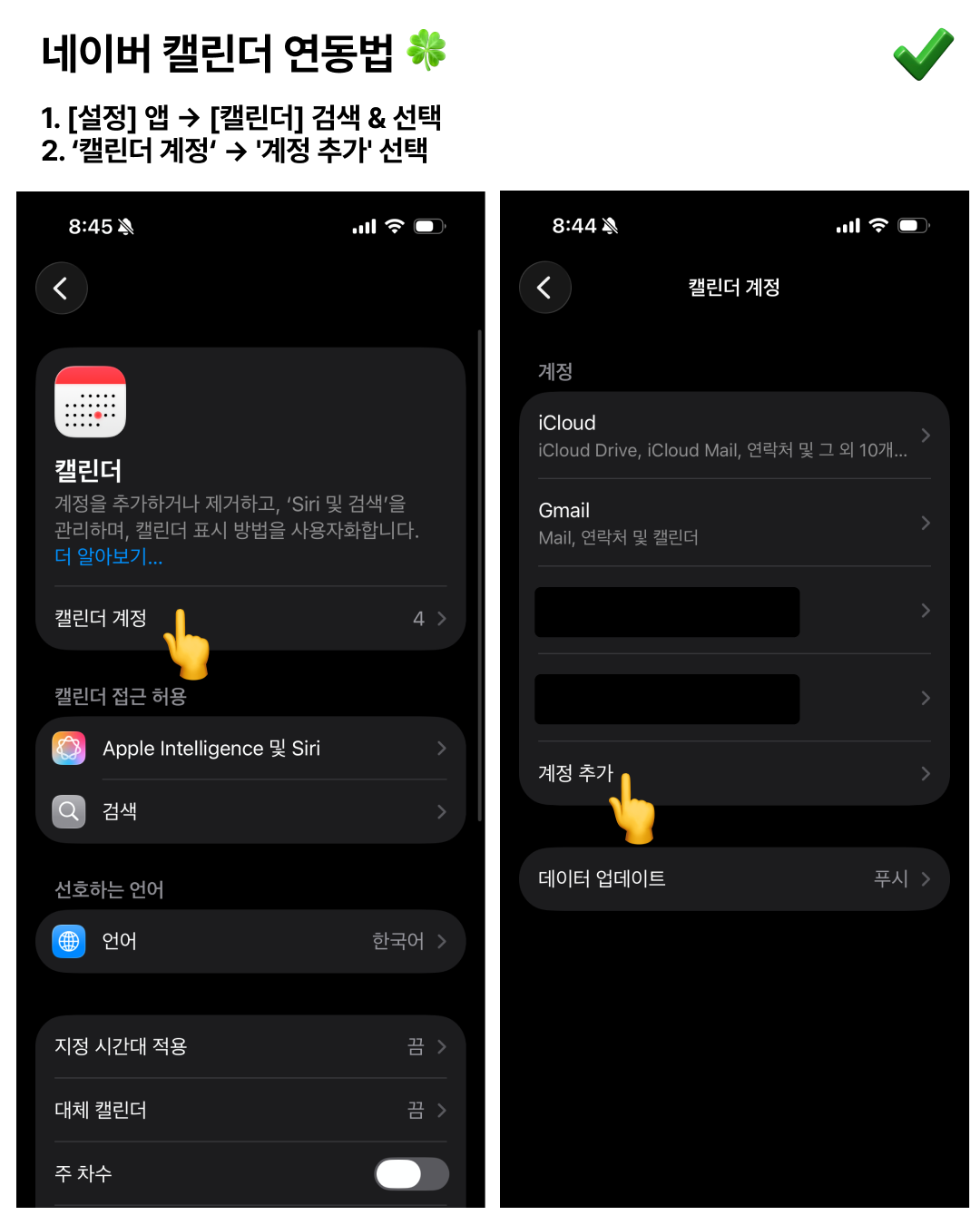
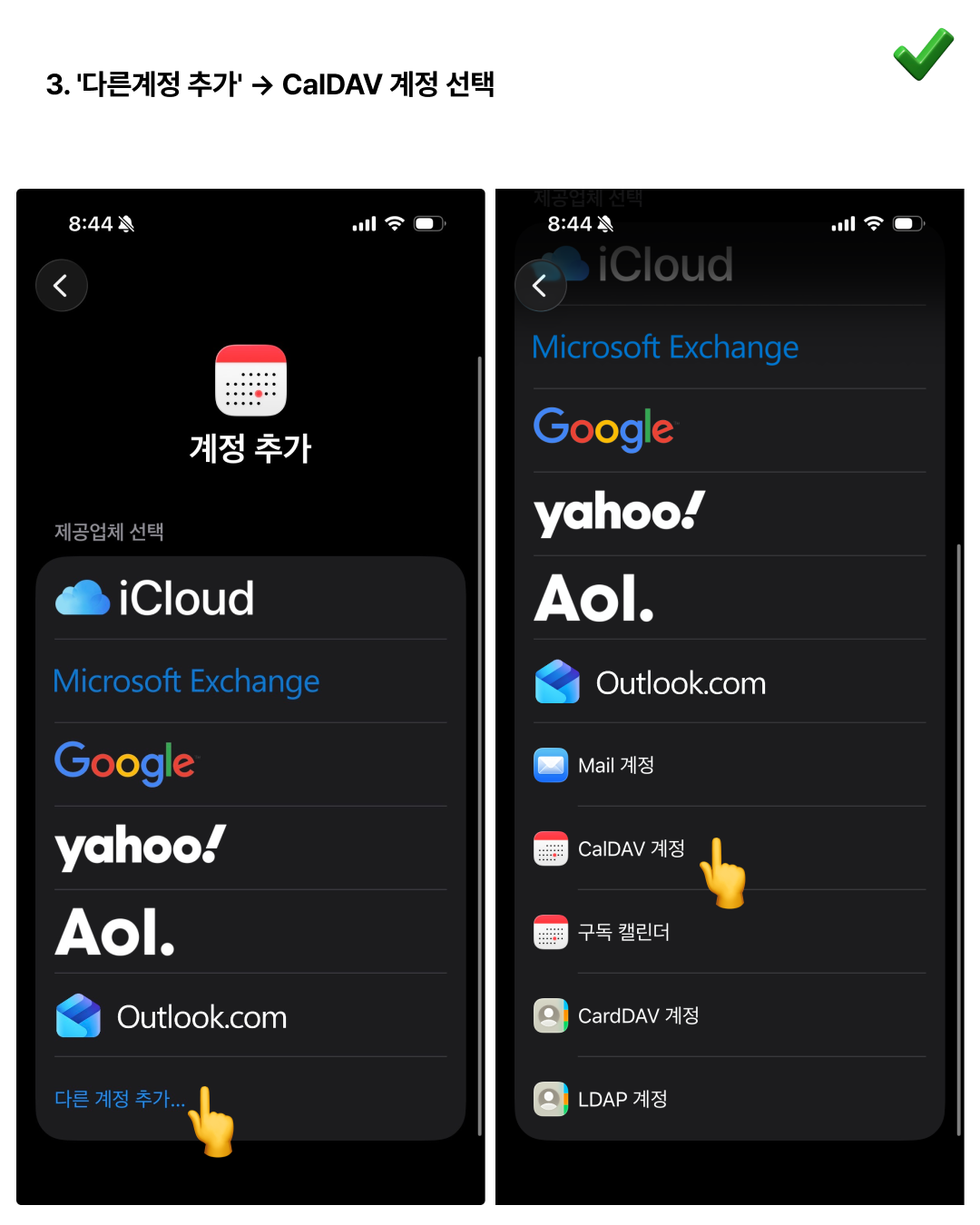
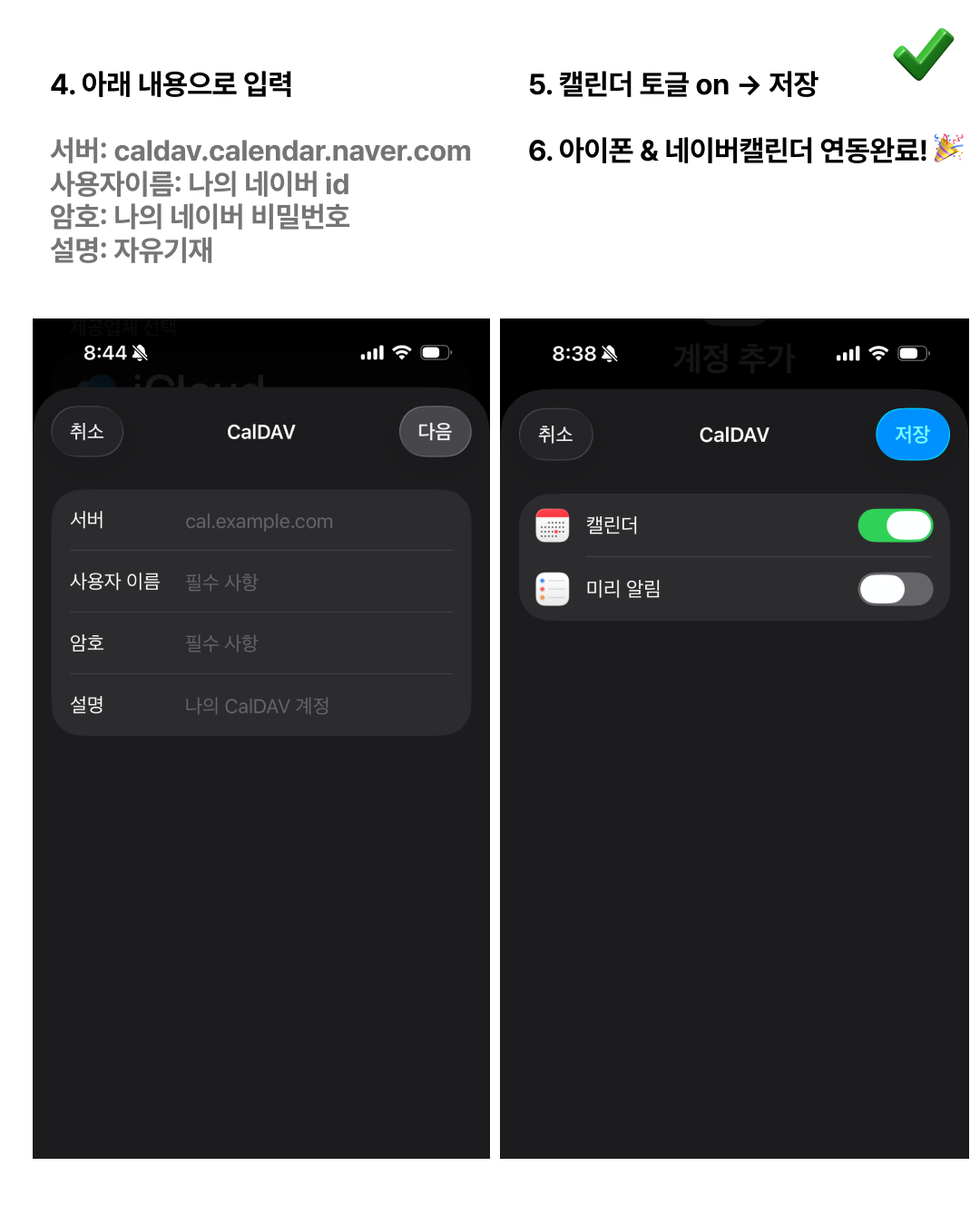
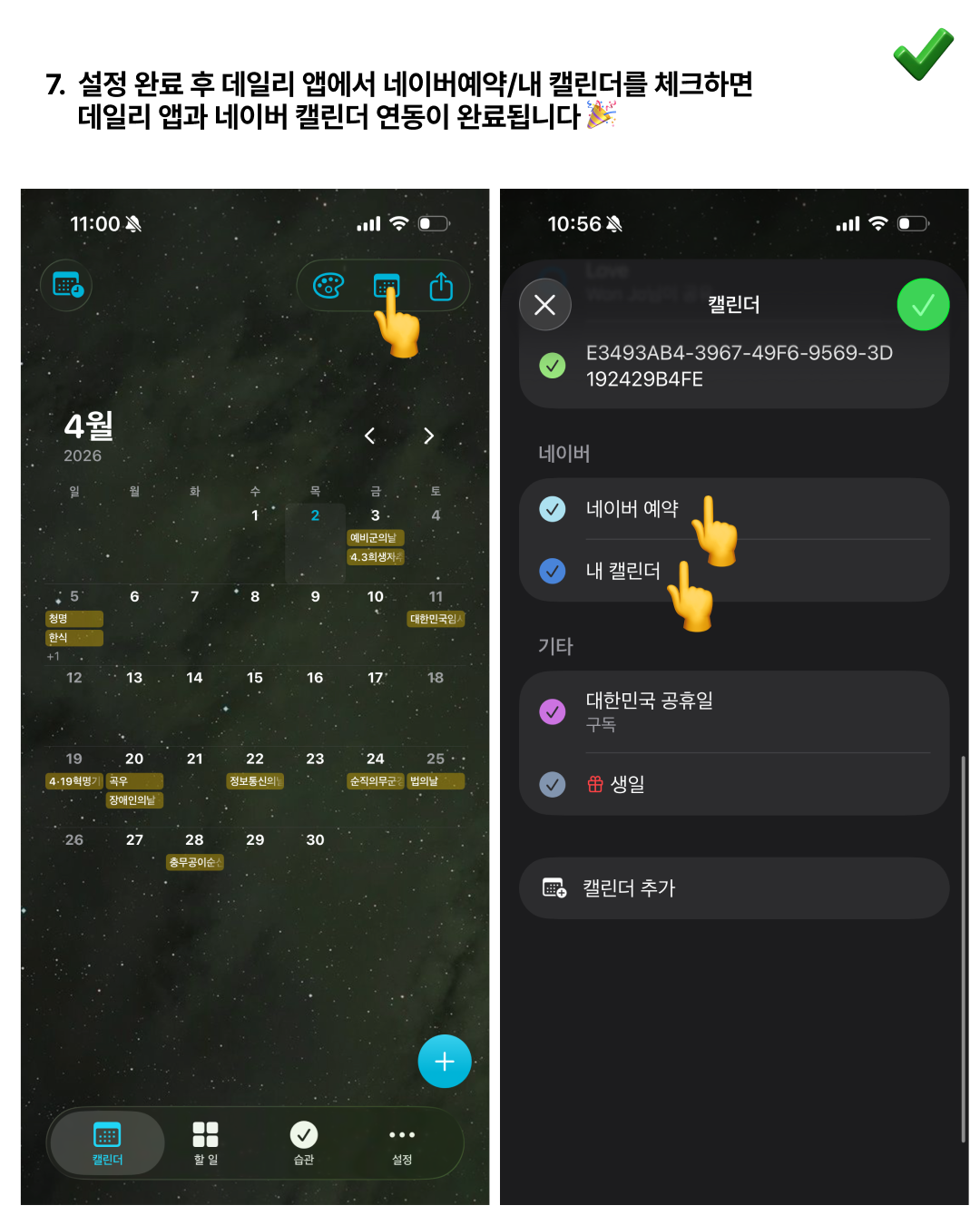
CalDAV Server Info
| Field | Value |
|---|---|
| Server | caldav.calendar.naver.com |
| User Name | Your Naver ID |
| Password | Your Naver password |
| Description | Anything you like |
Troubleshooting
I can’t sign in
If you have 2-step verification enabled on your Naver account, you need to use an application-specific password instead of your regular password.
- Go to Naver My Info.
- Navigate to Security Settings > 2-Step Verification > Manage Application Passwords.
- Enter an application name and generate a password.
- Use the generated password in the CalDAV password field.
Calendar doesn’t appear in Daily app
If you don’t see your Naver Calendar in the Daily app after adding the CalDAV account:
- Go to iPhone Settings > Calendar > Accounts and check your CalDAV account.
- Make sure the Calendars toggle is turned on.
- Force quit and reopen the Daily app.